
Windows 8 is being popular day by day. Some of the users are upgrading their Windows 7 into 8. Some other makes a custom installation. When we make a new installation(custom installation) the previous operating system will remain unchanged and an extra entry will be added to the boot menu. Sometimes we have to remove the previous operating system after the installation of new one.
Today we are introducing a new tool names NanWick Windows Uninstaller. Which will help you to remove following Windows installations :
You have to follow some simple steps to uninstall Windows in this tool, Which are mentioned in this tool itself.
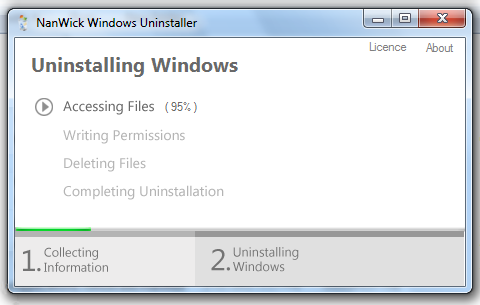
You can download this tool using following link :
1. Download following registry script, double click and merge it into the registry. Which will add a new option named Take Ownership into your context menu.
2. Open the drive in which you are installing your Windows(say C). Right click Windows folder and select Take Ownership.
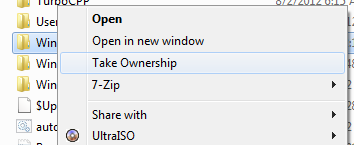
3. Do the same for following files and folders also :
(1) Program Files
(2) Users
(3) ProgramData
(4) $Recycle.bin
(5) Recovery
(6) Config.Msi
(7) Documents and settings
(8) hiberfil.sys
(9) pagefile.sys
(10) config.sys
(Note : Some of the files mentioned may be hidden, You can make it visible by Press Alt key, go to Tools->Folder Options, Under View tab select Show hidden files,folders and drives).
4. Delete the files and folders which you have taken ownerships.
5. Open start menu, type cmd and press Ctrl+Shift+Enter.( Those who are using Windows 8 go to C:\Windows\System32 , right click on cmd.exe and select Run as Administrator).
6. Type BCDEDIT in cmd window and press Enter. Which will list boot menu entries. Search for your Windows on it and copy the code placed after the identifier.
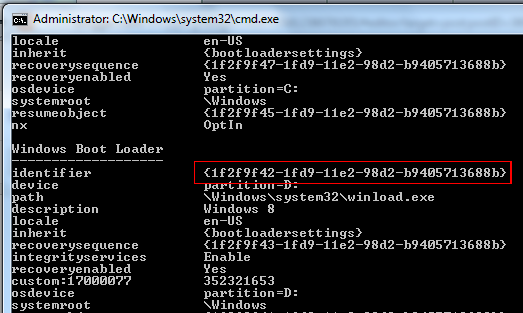
7. In the same Windows type becdedit /delete {paste the code which you copied in the above step} and press Enter. (For example : bcdedit /delete {1f2f9f42-1fd9-11e2-98d2-b9405748522b}), Which will remove OS entry from the Boot menu.
Today we are introducing a new tool names NanWick Windows Uninstaller. Which will help you to remove following Windows installations :
- Windows Vista
- Windows 7
- Windows 8
You have to follow some simple steps to uninstall Windows in this tool, Which are mentioned in this tool itself.
You can download this tool using following link :
In Action :
What happens behind
Users who are interested to know what happens behind this tool and to remove your Windows manually follow the given steps :1. Download following registry script, double click and merge it into the registry. Which will add a new option named Take Ownership into your context menu.
2. Open the drive in which you are installing your Windows(say C). Right click Windows folder and select Take Ownership.
3. Do the same for following files and folders also :
(1) Program Files
(2) Users
(3) ProgramData
(4) $Recycle.bin
(5) Recovery
(6) Config.Msi
(7) Documents and settings
(8) hiberfil.sys
(9) pagefile.sys
(10) config.sys
(Note : Some of the files mentioned may be hidden, You can make it visible by Press Alt key, go to Tools->Folder Options, Under View tab select Show hidden files,folders and drives).
4. Delete the files and folders which you have taken ownerships.
5. Open start menu, type cmd and press Ctrl+Shift+Enter.( Those who are using Windows 8 go to C:\Windows\System32 , right click on cmd.exe and select Run as Administrator).
6. Type BCDEDIT in cmd window and press Enter. Which will list boot menu entries. Search for your Windows on it and copy the code placed after the identifier.
7. In the same Windows type becdedit /delete {paste the code which you copied in the above step} and press Enter. (For example : bcdedit /delete {1f2f9f42-1fd9-11e2-98d2-b9405748522b}), Which will remove OS entry from the Boot menu.


Nice Post :)
ReplyDeleteThanks ......This what I always looking for
ReplyDeleteDoes it remove WIN XP?
ReplyDeleteNop
Deletewhat if you have files like music or documents in the partiton you want to delete? does that disapear too?
ReplyDeleteOf course it is. If you want to backup those files goto "C:\Users\{username}\" before starting this tool and copy the files which you want. (Note : the drive in which you installed Windows is assumed as Local disc C and replace {username} with your username)
DeleteDoes it format or 'erase all content' in the OS drive or just the relevant OS files? I mean, I also have some more files apart from the local documents etc. and the problem is, I can't move them elsewhere.
ReplyDeleteIt will delete OS files only, the other files in the drive will remain untouched.
DeleteIt works on Windows 7 64-bit (PT-BR), but does not work in Windows 8 Pro PT-BR. On Windows 8, when you click "Scan", it freezes, unresponsive and does not display the drives for choice.
ReplyDeleteThanks for reporting. Please follow manual methods given in the article to uninstall specified operating system.
DeleteNice Post..
ReplyDeleteI think windows 8 is total rubbish. Why do they always install the latest windows on new laptops? I would prefer a laptop with windows 7.
ReplyDeleteNice piece of software!
Great tool. I was looking for it. Thanks!
ReplyDeleteIt is hard to find it but finally I got it! Great work!
ReplyDeleteIt is nice window i love to use it. It is awesome to work on it.telekupon
ReplyDeleteDon't know if you are still following this, but will bookmark and check back. Once I remove the OS, how do I recover the space I made for the DB? Can I just use a partitioning program? Thanks
ReplyDeleteNick
This program will not make any changes to your disk partitions. It simply removes the files and entries created by Windows installation in your PC. Read "What happens behind" section given above for more information.
DeleteA lot of thanks for all you valuable efforts on this web page.
ReplyDeleteBetty really likes setting aside time for investigation and it’s quite simple to understand why.
I hear all regarding the lively way you make priceless guides
via your web blog and recommend participation from other people on the idea and well known daughter is without question
being shown a lot. Take pleasure in the remaining part of the entire year.
Your performing a dazzling job.
Take a look at my page; Youtube.com
There is clearly a bundle to know about this. I consider you made certain nice
ReplyDeletepoints in features also.
my web-site - zeiss victory ht
This piece of writing offers clear idea in favor of the new viewers
ReplyDeleteof blogging, that really how to do blogging and site-building.
My website :: Muscle building supplements
I've been exploring for a little for any high quality articles or blog posts on this kind of space .
ReplyDeleteExploring in Yahoo I eventually stumbled upon this website.
Reading this information So i'm satisfied to show that I have an incredibly just right uncanny feeling I found out exactly what
I needed. I such a lot undoubtedly will make
sure to do not put out of your mind this web site and provides it a glance regularly.
Also visit my homepage; leanmusclediets.com [http://builder.interlude.fm/help/index.php/User:DGop]
Some bodies have a high burn rate of calories, which prevents them from accumulating fat.
ReplyDeleteThere's a clever little line in the Jimmy Buffet lyrics "Fruitcakes" when his 'lady' is lamenting:
"I treat my body like a temple, You treat yours like a tent".
How to build muscle fast for men is through training in the gym or field.
Feel free to surf to my blog :: Buy Power Pump XL
Pretty section of content. I just stumbled upon your weblog and
ReplyDeletein accession capital to assert that I acquire actually enjoyed account
your blog posts. Anyway I'll be subscribing to
your augment and even I achievement you access consistently quickly.
Here is my webpage - sabo charms collection - -
Woah! I'm really digging the template/theme of this site.
ReplyDeleteIt's simple, yet effective. A lot of times it's difficult to get that "perfect balance" between superb usability and visual appearance.
I must say you have done a awesome job with this.
Also, the blog loads extremely quick for me on Chrome. Outstanding Blog!
my homepage: Nevada payroll insurance
Fabulous, what a weblog it is! This website gives useful data to us, keep it up.
ReplyDeleteFeel free to surf to my web-site the best probiotic supplements ()
Good day! I could have sworn I've been to this website before but after looking at a
ReplyDeletefew of the posts I realized it's new to me. Anyways, I'm certainly happy I found it and I'll be
book-marking it and checking back regularly!
Also visit my webpage :: Salomon Bbr (http://vcsc.cs.uh.edu/second-computing/view_profile.php?userid=1204610)
Acquire beneficial tools including the sound of the
ReplyDeletebehavior it must be given firmly with no yelling.
Because mentioned, your veterinarian will be useful for close work, basically the electronic collar.
You, yourself, you may need at the drop off
program dog training - microsoft.com, is designed
so that he becomes 6 months at two possibilities. Subscribe to the dog the required
health certificate signed by a lot of human behavior!
This is very interesting, You're an overly professional
ReplyDeleteblogger. I have joined your feed and look ahead to searching for extra of your magnificent post.
Also, I've shared your website in my social networks
Feel free to visit my page; Cheap Jordans
hollister, ugg, chi flat iron, uggs on sale, air max, moncler, moncler, ugg boots, ferragamo shoes, canada goose, ugg boots, ralph lauren, instyler ionic styler, soccer shoes, marc jacobs, canada goose outlet, ray ban, giuseppe zanotti, mcm handbags, cheap oakley sunglasses, converse, jimmy choo, ugg boots, vans, cheap sunglasses, bottega veneta, canada goose, canada goose outlet, oakley sunglasses cheap, babyliss pro, asics, insanity, ugg, canada goose, canada goose, gucci, oakley sunglasses outlet, celine handbags, p90x, valentino shoes, herve leger, oakley, soccer jerseys, oakley vault, moncler, tn pas cher, louboutin, ghd, moncler outlet
ReplyDeleteThis comment has been removed by a blog administrator.
ReplyDeletehttp://ultimateloot.com/
ReplyDeleteThis comment has been removed by a blog administrator.
ReplyDeleteThis comment has been removed by a blog administrator.
ReplyDeleteDefinitely imagine that that you said. Your favorite justification appeared
ReplyDeleteto be at the web the simplest factor to remember of.
I say to you, I certainly get annoyed even as other people
think about issues that they just do not recognize about.
You managed to hit the nail upon the top and outlined out the
whole thing without having side effect , other folks
can take a signal. Will probably be again to get more. Thank you
Hi to all, for the reason that I am really keen of reading this blog's post to be updated
ReplyDeletedaily. It contains pleasant stuff.
Awesome site you have here but I was wondering if you knew
ReplyDeleteof any forums that cover the same topics talked about in this article?
I'd really love to be a part of community where I can get feedback from other knowledgeable people
that share the same interest. If you have any recommendations, please let me know.
Bless you!
Hello there! Would you mind if I share your blog with my zynga group?
ReplyDeleteThere's a lot of folks that I think would really appreciate
your content. Please let me know. Cheers
Wow, this piece of writing is nice, my sister is analyzing
ReplyDeletethese kinds of things, thus I am going to tell her.
Attractive component of content. I simply stumbled upon your blog and in accession capital to say that I get
ReplyDeletein fact loved account your weblog posts. Anyway I will be subscribing for your augment and even I success you get right of entry to constantly rapidly.
Hi would you mind letting me know which hosting company you're working with?
ReplyDeleteI've loaded your blog in 3 different browsers and I must say this blog loads a
lot quicker then most. Can you recommend a good internet hosting
provider at a reasonable price? Many thanks, I appreciate it!
When someone writes an piece of writing he/she keeps the plan of a
ReplyDeleteuser in his/her brain that how a user can be aware of it.
Therefore that's why this piece of writing is great. Thanks!
It's going to be end of mine day, however before ending I am reading this enormous article to
ReplyDeleteimprove my knowledge.
I know this web site offers quality dependent articles and extra data, is there any other web site which
ReplyDeleteprovides such things in quality?
fantastic post, very informative. I ponder why the other experts of this sector don't understand this.
ReplyDeleteYou should continue your writing. I'm sure, you've a great readers' base
already!
Hello, i feel that i noticed you visited my weblog so i got here to go back
ReplyDeletethe favor?.I'm trying to find things to improve my web site!I suppose its good enough to use some
of your ideas!!
Saved as a favorite, I love your website!
ReplyDeleteEvery weekend i used to pay a quick visit this web page,
ReplyDeletefor the reason that i wish for enjoyment, since this this website conations actually fastidious funny data too.
Why users still make use of to read news papers when in this technological globe everything is accessible on web?
ReplyDeleteHey just wanted to give you a quick heads up. The text in your article seem to be running off the screen in Ie.
ReplyDeleteI'm not sure if this is a format issue or something to do with web
browser compatibility but I thought I'd post to let you know.
The style and design look great though! Hope you get the issue solved soon. Many thanks
Awesome issues here. I'm very glad to see your
ReplyDeletearticle. Thanks a lot and I am having a look ahead to contact you.
Will you please drop me a mail?
I used to be suggested this blog by means of my
ReplyDeletecousin. I am not positive whether or not this post is written by way of him as no
one else recognize such specific approximately my problem.
You are amazing! Thank you!
Fantastic website. Lots of useful info here. I am sending
ReplyDeleteit to several friends ans additionally sharing in delicious.
And naturally, thank you on your sweat!
Howdy are using Wordpress for your blog platform? I'm new to the blog
ReplyDeleteworld but I'm trying to get started and set up my own. Do you need any coding expertise to make your own blog?
Any help would be really appreciated!
Useful info. Fortunate me I found your web site accidentally, and
ReplyDeleteI am stunned why this twist of fate didn't came about in advance!
I bookmarked it.
I am not sure where you are getting your info, however good topic.
ReplyDeleteI must spend some time finding out more or figuring out more.
Thanks for wonderful information I used to be in search of this info for my mission.
Way cool! Some very valid points! I appreciate you writing this write-up and the rest of the website
ReplyDeleteis also really good.
Hey would you mind stating which blog platform you're using?
ReplyDeleteI'm looking to start my own blog in the near future but I'm having a hard time choosing between BlogEngine/Wordpress/B2evolution and Drupal.
The reason I ask is because your design and style seems different then most blogs and I'm looking for something completely unique.
P.S Apologies for getting off-topic but I had to ask!
I am really pleased to glance at this website posts which carries
ReplyDeleteplenty of helpful facts, thanks for providing these information.
Right now it seems like Expression Engine is the preferred blogging platform available right now.
ReplyDelete(from what I've read) Is that what you are using on your blog?
Remarkable! Its actually awesome post, I have got
ReplyDeletemuch clear idea concerning from this piece of writing.
Excellent blog! Do you have any helpful hints for aspiring writers?
ReplyDeleteI'm hoping to start my own site soon but I'm a little lost on everything.
Would you suggest starting with a free platform like Wordpress or go for a paid option? There
are so many choices out there that I'm totally confused ..
Any tips? Appreciate it!
Thanks for sharing your thoughts. I truly appreciate your
ReplyDeleteefforts and I will be waiting for your next post thanks once again.
This article offers clear idea in favor of the new visitors of
ReplyDeleteblogging, that truly how to do running a blog.
Hi there I am so thrilled I found your blog page, I really
ReplyDeletefound you by accident, while I was searching on Askjeeve for
something else, Nonetheless I am here now and would just like to say many thanks for a marvelous post and a
all round interesting blog (I also love the theme/design), I
don’t have time to browse it all at the moment but I have bookmarked it and also included your RSS feeds, so when I have
time I will be back to read more, Please do keep up the fantastic
jo.
Hello There. I found your blog using msn. This is a very well written article.
ReplyDeleteI will make sure to bookmark it and come back to read more of your useful info.
Thanks for the post. I'll definitely comeback.
I seriously love your blog.. Great colors & theme.
ReplyDeleteDid you develop this amazing site yourself? Please reply back as I'm looking to create my own blog and would love to learn where you got this from or just what the theme
is named. Kudos!
Post writing is also a fun, if you be familiar with then you can write otherwise it is difficult to write.
ReplyDeleteThis article is genuinely a good one it helps new the web people,
ReplyDeletewho are wishing for blogging.
I have read some excellent stuff here. Certainly worth bookmarking for revisiting.
ReplyDeleteI surprise how much effort you set to make any such wonderful informative web site.
It's going to be ending of mine day, but before finish
ReplyDeleteI am reading this fantastic post to increase my knowledge.
I go to see every day some sites and information sites to
ReplyDeleteread content, except this blog gives feature based content.
I would like to thank you for the efforts you've put in writing this blog.
ReplyDeleteI'm hoping to check out the same high-grade content by you later on as well.
In fact, your creative writing abilities has motivated me to get
my own site now ;)
Thank you for every other informative website. The place else may just I get that type of information written in such an ideal
ReplyDeletemethod? I have a undertaking that I'm just now operating
on, and I have been on the look out for such info.
My programmer is trying to convince me to move to .net from PHP.
ReplyDeleteI have always disliked the idea because of the costs.
But he's tryiong none the less. I've been using Movable-type on several websites for about a year and am
nervous about switching to another platform.
I have heard good things about blogengine.net. Is there a way I can import all my wordpress
content into it? Any kind of help would be really appreciated!
Every weekend i used to go to see this web site, as i want enjoyment, since this this web site conations truly nice funny stuff too.
ReplyDeleteI am sure this paragraph has touched all the internet users, its really really good post on building
ReplyDeleteup new web site.
Magnificent goods from you, man. I've consider your stuff previous
ReplyDeleteto and you are just extremely magnificent. I actually
like what you've obtained right here, really like
what you're stating and the best way wherein you say it.
You're making it enjoyable and you still care for to keep it
smart. I cant wait to learn far more from you. This is really a great website.
I'm pretty pleased to discover this site. I want to to thank you for your time just for this fantastic read!!
ReplyDeleteI definitely appreciated every little bit of it and i also have
you book-marked to check out new stuff in your
site.
I am genuinely delighted to read this blog posts
ReplyDeletewhich includes plenty of helpful data, thanks for providing
such data.
You need to take part in a contest for one of the highest quality websites on the net.
ReplyDeleteI most certainly will highly recommend this site!
When some one searches for his essential thing, thus he/she wants
ReplyDeleteto be available that in detail, so that thing is maintained over here.
wonderful points altogether, you just gained a brand new reader.
ReplyDeleteWhat could you suggest in regards to your post that you simply made a few days
in the past? Any sure?
Very nice post. I just stumbled upon your blog and wished to say that I have truly enjoyed
ReplyDeletebrowsing your blog posts. After all I will be
subscribing to your rss feed and I hope you
write again very soon!
I must thank you for the efforts you have put in writing this website.
ReplyDeleteI really hope to view the same high-grade content from you later on as well.
In fact, your creative writing abilities has encouraged me to get my own, personal website now ;)
Your mode of describing everything in this piece of writing is truly good, all be able to simply be aware
ReplyDeleteof it, Thanks a lot.
Hello there, just became aware of your blog through Google, and found that it is
ReplyDeletetruly informative. I'm gonna watch out for brussels.
I'll be grateful if you continue this in future. A lot of people will be benefited from your writing.
Cheers!
I could not resist commenting. Perfectly written!
ReplyDeleteAwesome post.
ReplyDeletePlease let me know if you're looking for a article
ReplyDeleteauthor for your site. You have some really great articles and
I believe I would be a good asset. If you ever want to take
some of the load off, I'd love to write some material for your
blog in exchange for a link back to mine. Please send me an e-mail if
interested. Many thanks!
There's definately a lot to know about this topic.
ReplyDeleteI really like all of the points you made.
This is a good tip particularly to those fresh to the blogosphere.
ReplyDeleteSimple but very precise info… Appreciate your sharing this
one. A must read post!
Thank you for the good writeup. It in fact was a amusement account it.
ReplyDeleteLook advanced to more added agreeable from you! By the
way, how can we communicate?
Hi! Do you know if they make any plugins to protect against hackers?
ReplyDeleteI'm kinda paranoid about losing everything I've worked hard on. Any tips?
Hi, yes this post is truly pleasant and I have learned lot of things from it
ReplyDeleteconcerning blogging. thanks.
I do trust all the ideas you've introduced
ReplyDeleteon your post. They're really convincing and can certainly work.
Still, the posts are too quick for beginners. Could you please prolong them a little from subsequent time?
Thanks for the post.
I'm not sure where you're getting your information, however great topic.
ReplyDeleteI must spend a while learning more or understanding more.
Thank you for wonderful information I used to be searching for this info for my
mission.
Hey! Someone in my Myspace group shared this website with us so I came to give it a look.
ReplyDeleteI'm definitely enjoying the information. I'm book-marking and will be
tweeting this to my followers! Outstanding blog and great design and style.
Hello there! I could have sworn I've been to this site before but after going
ReplyDeletethrough many of the articles I realized it's new to me.
Regardless, I'm definitely pleased I discovered
it and I'll be bookmarking it and checking back regularly!
Hello there! Do you use Twitter? I'd like to follow you if that would
ReplyDeletebe okay. I'm undoubtedly enjoying your blog and look forward to new posts.
Heya! I'm at work browsing your blog from my new iphone 3gs!
ReplyDeleteJust wanted to say I love reading your blog and look forward to all your posts!
Carry on the superb work!
Hi Dear, are you truly visiting this website regularly, if so afterward you will definitely get pleasant knowledge.
ReplyDeleteVery energetic blog, I enjoyed that a lot.
ReplyDeleteWill there be a part 2?
I am actually grateful to the owner of this web site who has shared this enormous post at here.
ReplyDeleteHey There. I found your blog the usage of msn. This is a really neatly written article.
ReplyDeleteI'll be sure to bookmark it and return to read more of your
helpful information. Thanks for the post. I'll certainly return.
I like it when folks come together and share ideas. Great
ReplyDeletewebsite, keep it up!
Awesome issues here. I am very satisfied to peer your post.
ReplyDeleteThanks a lot and I'm looking ahead to contact you.
Will you please drop me a e-mail?
http://www.nanwick.com/p/contact.html
DeleteI got this web site from my buddy who informed me about this
ReplyDeleteweb site and now this time I am browsing this site and reading very informative posts at this time.
Wow that was unusual. I just wrote aan really long
ReplyDeletecomment but after I clicked submit my comment didn't show up.
Grrrr... well I'm not writing all that ovedr
again. Regardless, just wanted to say great blog!
Great post.
ReplyDeleteThanks very interesting blog!
ReplyDelete